
Signals/ ChatGPT & OpenAI/ Reel /
ChatGPT Is Probably Learning From Your Chats. Here Are 3 Switches to Fix That
Turn off Improve the model for everyone, use Temporary chat for private questions, and hide saved chats behind a PIN with Locked chats. Here are the exact menu paths for web and phone, what each switch does and doesn't do, the catches most people miss, and a free printable checklist.
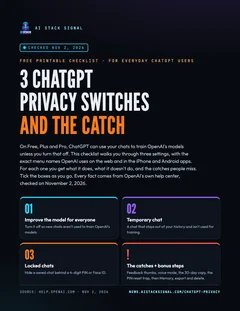
Free checklist · 7 pages · PDF
The ChatGPT privacy checklist
Tick-box steps with the exact menu paths for web and phone, what each switch does and doesn't do, the catches, bonus steps for Memory, export and delete, and every source.
⬇ Download the PDFIf you use ChatGPT on a Free, Plus or Pro plan and never opened its data settings, your chats can be used to train OpenAI’s models. OpenAI says so plainly in its Data controls help page: “On personal workspaces with ChatGPT Free, Plus, or Pro, data sharing is enabled by default.”
There are three switches that change what happens to your chats. Each does one job, and each has a gap. Below are the exact steps for the web and the phone apps, all taken from OpenAI’s own help center on November 2, 2026, plus the catches and a few bonus steps.
Switch 1: Improve the model for everyone
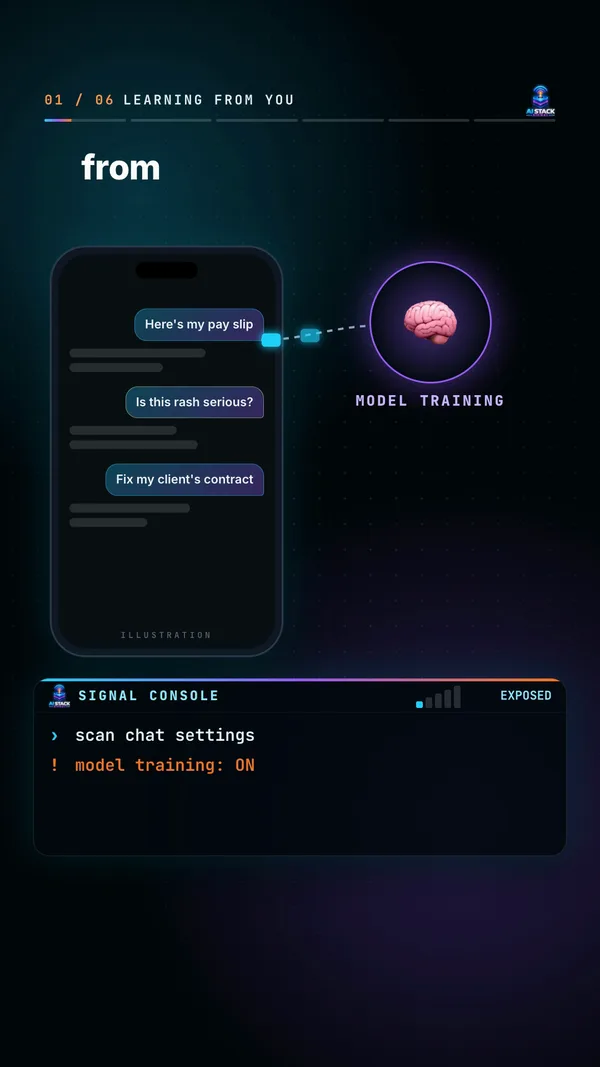
This is the training switch. In OpenAI’s words: “Data controls let you choose whether your conversations help train OpenAI models.” The setting is called Improve the model for everyone.
On the web (signed in):
- “Open your account menu.”
- “Select Settings.”
- “Select Data controls.”
- “Select Improve the model for everyone, turn it off, and select Done.”
On iPhone or Android:
- “Open the sidebar.”
- “Select your profile icon to open Settings.”
- “Select Data controls.”
- “Turn off Improve the model for everyone.”
If you use ChatGPT without signing in, open Settings and turn it off there. “Your choice is saved in that browser,” so you’d repeat it on every browser you use.
There’s a second route too. OpenAI’s model-training page says you can “select Do not train on my content in our Privacy Portal” (privacy.openai.com), and “Either option is sufficient for ChatGPT conversations and Codex tasks. You don’t need to do both.”
What it does:
- Stops new chats being used for training. “After you opt out, we won’t use your new conversations to improve our models.”
- Works everywhere you’re signed in. “When you’re signed in, Improve the model for everyone applies to your account across web and mobile devices.”
- Keeps your history. You can turn it off “and keep your chat history.”
What it doesn’t do:
- It doesn’t delete anything. “Turning off Improve the model for everyone does not delete or hide saved chats.”
- It doesn’t cover voice mode or feedback thumbs. More on both in the catches below.
- It doesn’t touch Memory. Memory and model training “are separate settings.”
Which plans start with it on? OpenAI’s sentence names Free, Plus and Pro. “By default, OpenAI does not use content from ChatGPT Business, Enterprise, Edu, or ChatGPT for Healthcare workspaces to train its models.” On any other plan, open the setting and look. And “Parent or guardian settings and workspace controls may limit whether you can change it.”
Use case
You’ve pasted your CV, a tricky email to your landlord and a few health questions into ChatGPT over the last year. Turning this off means the chats you have from now on aren’t used to train future models, and your old chats stay right where they are for you to reread.
Takeaway
This is the only one of the three switches that changes training for your whole account. Do it first. It takes about thirty seconds.
Switch 2: Temporary chat
Temporary chat is for one-off questions you don’t want sitting in your history. According to OpenAI’s Temporary chat page: “A temporary chat stays out of your chat history and is not used to improve OpenAI models while it remains temporary.”
How to start one (same on web, iPhone and Android):
- “Open a new chat.”
- “Select Temporary.”
- “Choose Personalized or Unpersonalized before you send your first message.”
- “Enter your message.”
That third step matters more than it looks:
- “Unpersonalized: Does not use memory, custom instructions, or plugins.”
- “Personalized: Can use your existing memories, custom instructions, and plugins.”
- “You cannot change personalization after the conversation starts.”
What it does:
- Stays out of history. “If you do not save a temporary chat, it will not appear in your history and cannot be reopened from history after you leave it.”
- Isn’t used for training, “whether or not you choose personalization.”
- Doesn’t create memories. “Neither option creates or updates memories while the chat remains temporary.”
What it doesn’t do:
- Disappear instantly. “OpenAI may keep a copy of a temporary chat for up to 30 days for safety purposes.”
- Ignore your memories if you pick Personalized. It can still read what ChatGPT already knows about you.
- Stay temporary if you save it. Saving “converts it into a regular chat,” and from then on it “follows your account’s personalization and model-improvement settings.”
- Cover GPT actions. If a GPT sends data to another company, “The recipient may retain that data for longer than 30 days and may use it for other purposes.”
Use case
You want to ask about a rash, a debt letter or a gift for your partner, and you’d rather it not show up in your sidebar or get folded into what ChatGPT remembers about you. Start a temporary chat and pick Unpersonalized before you type.
Takeaway
Temporary chat doesn’t create memories and isn’t used for training. It can still use your old memories unless you choose Unpersonalized, and OpenAI may keep a safety copy for up to 30 days.
Switch 3: Locked chats
Locked chats are new. OpenAI’s release notes list “Introducing locked chats” on October 20, 2026. A locked chat stays saved but is hidden “from your regular chat history, pinned chats, and regular conversation search,” which helps when you share your screen or a device. Per the locked chats page: “Opening locked chats requires a 4-digit account PIN.”
“Locked chats are available on ChatGPT Free, Go, Plus, Pro, Business, Enterprise, and Edu,” but “Locked chats are rolling out gradually,” so you may not see the option yet. They aren’t on ChatGPT for Healthcare, and on desktop you need the new ChatGPT app for macOS or Windows.
How to lock a chat:
- “Open the more options menu (•••) for the chat.”
- “Select Lock chat.”
- “Select Lock chat again to confirm.”
- “Create or enter the account PIN when prompted.”
The first time, you’ll set a PIN: “Select Create a PIN.” “Enter a 4-digit PIN.” “Enter the PIN again to confirm it.” Write it down somewhere safe; you’ll see why in a minute.
Face ID, Touch ID or device unlock (optional): “On iOS, turn on Use Face ID or Use Touch ID in Account PIN settings, when available. On Android, select Use device unlock when prompted.” The PIN settings live under Settings, Security and login, Account PIN. Device unlock “applies only to the device where you enable it.”
Finding them later: “You can find your locked chats under Projects > Locked chats.” When you’re done, “Select Lock now to end access to locked chats immediately.”
What locking doesn’t do, in OpenAI’s own list. It does not:
- “create end-to-end encryption or a separate encrypted vault”
- “change how long OpenAI retains the chat”
- “change your Improve the model for everyone setting”
- “remove information that ChatGPT remembered before you locked the chat”
Memory flows one way. “Locked chats can use relevant information from regular Memory,” while “Information remembered only within locked chats does not carry into regular chats.” And a practical limit: “Anyone who can open a locked chat can still copy its contents.”
Use case
You share a laptop with your family, or you present your screen at work, and you’ve got one chat about a job search or a medical result you don’t want popping up in the sidebar. Lock that one chat and it disappears from history and search until you enter your PIN.
Takeaway
A lock is a curtain, not a safe. It hides a chat from people looking at your screen. It doesn’t change what OpenAI keeps or trains on.
The catches
Each switch has a gap. These are the ones most people miss.
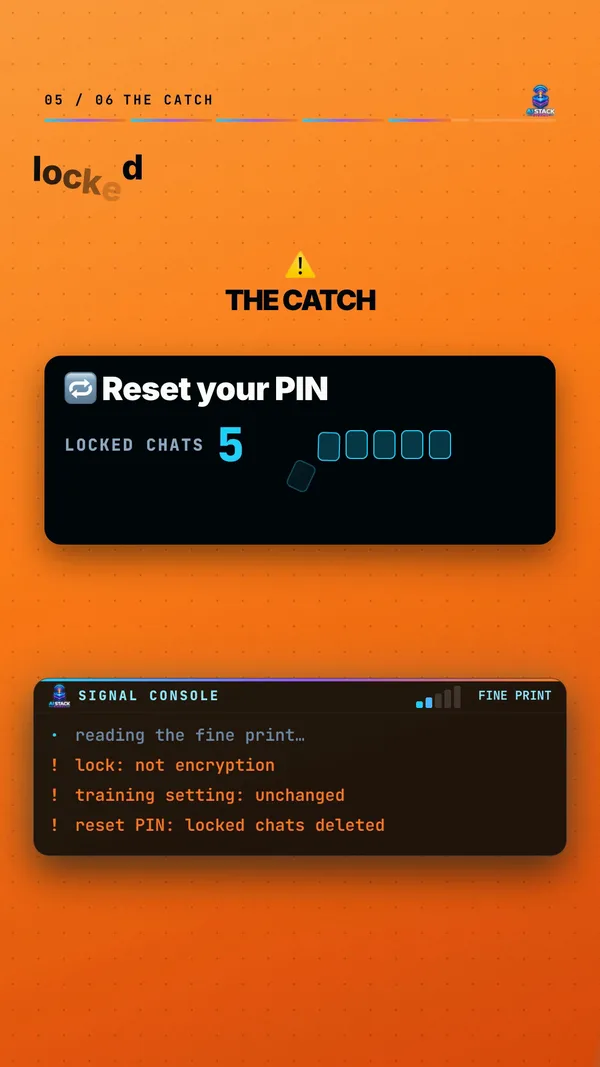
- Resetting your PIN deletes every locked chat. “Resetting your account PIN permanently deletes all locked chats, remembered information stored only within locked chats, and files or other content protected only by your previous PIN. This cannot be undone, and OpenAI Support cannot recover the deleted content.” But forgetting alone is fine: “Forgetting your PIN does not by itself delete your locked chats or files.” And “Changing the PIN does not delete locked chats.” Only the reset does.
- Thumbs up or down can still send a chat to training. “If you choose to provide feedback, such as selecting thumbs up or thumbs down on a response, the entire conversation associated with that feedback may be used to train OpenAI models.” That holds even after you opt out. Our tip: skip the thumbs on anything private.
- Voice mode has its own switch. “Voice mode has a separate control for sharing data for model training.” If you talk to ChatGPT out loud, look for that option in Settings as well. OpenAI’s page doesn’t give its exact menu name, so we won’t guess.
- Temporary isn’t instant. “OpenAI may keep a copy of a temporary chat for up to 30 days for safety purposes.”
- Training off deletes nothing. OpenAI’s own FAQ: “Does turning off model training delete my chats?” “No. Delete a chat or your account separately when you want to remove content.”
- Other screens lag. After you lock a chat, “Other devices where ChatGPT is already open may continue to show the chat title until their conversation lists refresh.” Check them before you share your screen.
Takeaway
Write your PIN down, skip the feedback thumbs on private chats, and check voice mode separately. Those three habits close most of the gaps.
Bonus: Memory, export and delete
Three more settings worth a minute. First, know that Memory is not the training switch: “Memory controls how ChatGPT personalizes responses. Model-training controls determine whether eligible content can be used to improve OpenAI models. These are separate settings.”
- Review or turn off Memory. From the Memory page: “Open Settings.” “Select Personalization.” “Select Memory.” Depending on your account you’ll see controls like Reference saved memories and Reference chat history. “Turning off Memory does not delete your past chats.” If you delete a saved memory, “OpenAI may retain logs of deleted saved memories for up to 30 days for safety and debugging purposes.”
- Export your data. On the web, go to Settings, Data controls, and under Export data select Export, then Confirm export. Per the export page: “Exports can take up to 7 days to arrive,” and “The download link expires 24 hours after you receive it.” It isn’t available for Business, Enterprise or Healthcare workspaces.
- Delete a chat. On the web: “Select the more options menu (•••) for the chat you want to delete.” “Select Delete.” “Confirm the deletion.” On a phone: “Select the menu icon (two horizontal lines).” “Find the conversation and press and hold its title.” “Select Delete.” OpenAI then “schedules it for permanent deletion from its systems within 30 days,” with some exceptions for security or legal reasons (deleting chats page).
- Delete all chats. “Open Settings.” “Select Data controls.” “Select Archive all chats or Delete all chats.” The Delete all chats action “cannot be undone.” Archiving isn’t deleting: “Archiving a chat does not change whether it can be used to train OpenAI models.”
- Delete your account (last resort). On the web it’s account menu, Settings, Account, then Delete next to Delete account. On iOS it’s under Data controls, Delete account; on Android, Data controls, Delete OpenAI account. “Deleting your OpenAI account is permanent,” and “Deleting your account does not cancel an Apple subscription,” so cancel that first (account deletion page).
Use case
You’re cleaning up after years of use. Export your data first so you have a copy, delete the chats you don’t want kept, and glance at Memory to see what ChatGPT has picked up about you.
Takeaway
Training, Memory and your chat history are three separate things. Turning one off doesn’t touch the other two.
The fine print
- Menu names come from OpenAI’s help text. The apps update often, so a label on your screen may be slightly different.
- “On by default” is stated for Free, Plus and Pro only. If you’re on another plan, open the setting and check.
- Locked chats are rolling out gradually and aren’t on ChatGPT for Healthcare.
- “Skip the thumbs on private chats” is our tip, not OpenAI’s.
- Not connected: AI Stack Signal isn’t connected to OpenAI.
Related reading: our earlier brief on the locked chats launch, ChatGPT can now hide chats behind a PIN, but it isn’t encryption.
Takeaway
Every fact here comes from OpenAI’s own help center, checked on November 2, 2026. Settings move, so check the pages yourself if something looks different.
Which of the three did you already have switched on?
Sources & links 9
- OpenAI Help Center: Data controls in ChatGPT help.openai.com ↗
- OpenAI Help Center: Temporary chat in ChatGPT help.openai.com ↗
- OpenAI Help Center: Using locked chats in ChatGPT help.openai.com ↗
- OpenAI Help Center: ChatGPT release notes (Oct 20, 2026, Introducing locked chats) help.openai.com ↗
- OpenAI Help Center: How your data is used to improve model performance help.openai.com ↗
- OpenAI Help Center: Memory in ChatGPT help.openai.com ↗
- OpenAI Help Center: Exporting your ChatGPT history and data help.openai.com ↗
- OpenAI Help Center: Deleting and archiving chats in ChatGPT help.openai.com ↗
- OpenAI Help Center: Deleting your ChatGPT account help.openai.com ↗