Signals/ Reel /
Your Computer Can Now Write a Song, Speak in a Voice and Draw a Picture
KoboldCpp is a free app that runs AI on your own machine. Its 1.124 update adds a song maker that turns lyrics into music, 17 new voice models (11 can copy a voice from a recording) and new picture models. Here's what's new, which file to download, and how to make your first song.
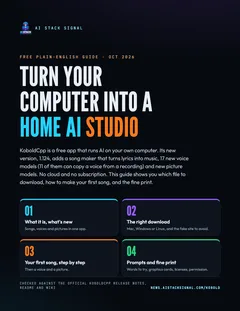
Free guide · 7 pages · PDF
Turn your computer into a home AI studio
What KoboldCpp is, what's new in 1.124, which file to download for Mac, Windows or Linux, how to make your first song step by step, then a voice and a picture, plus the fine print.
⬇ Download the PDFYour computer can now write a song, speak in someone’s voice and draw a picture, with no cloud and no subscription. The app is called KoboldCpp. It’s free, it runs AI on your own machine, and this week’s update, version 1.124, turned it into a little studio.
What happened
KoboldCpp 1.124 came out on GitHub on October 30, 2026, at 11:51 PM Central time. KoboldCpp’s README describes it as free, open-source software for running AI models on your own computer: “One executable file, no installation required,” with downloads for Windows, Linux and macOS. Besides chatting with AI, it already included picture, speech and music features, and this release adds a lot more.
The release notes say KoboldCpp “integrated a small subset of popular models from audio.cpp,” which “greatly enhances” its music and speech features. You use it all in your web browser: the music and voice page lives at localhost:5001/musicui (“localhost” just means the page comes from your own computer).
Use case
You make short videos for a small business or a hobby page and keep paying for separate music, voice and image tools. One free app on your own computer can now try all three.
Songs from your lyrics
The headline feature is YuE2, a music model that turns lyrics into a song. The release notes offer three ready-made templates:
- YuE2, no LLM: the lightest option. “Bring your own lyrics.”
- YuE2, small LLM: adds a small 4B AI that can write lyrics for you. Marked Recommended.
- YuE2, big LLM: a huge lyric-writing AI, “Only for large GPUs.”
A template is a small .kcppt file. KoboldCpp’s wiki says a template downloads the model files it needs when you launch it, so you don’t have to hunt for them yourself.
Try this prompt
KoboldCpp’s wiki examples mark song parts with tags like [Verse 1] and [Chorus]. Paste lyrics like these into the music page:
[Verse 1]
Coffee on the counter, sun is coming through
The dog is at the window, waiting just for you

[Chorus]
Saturday morning, nothing left to do
Saturday morning, me and you
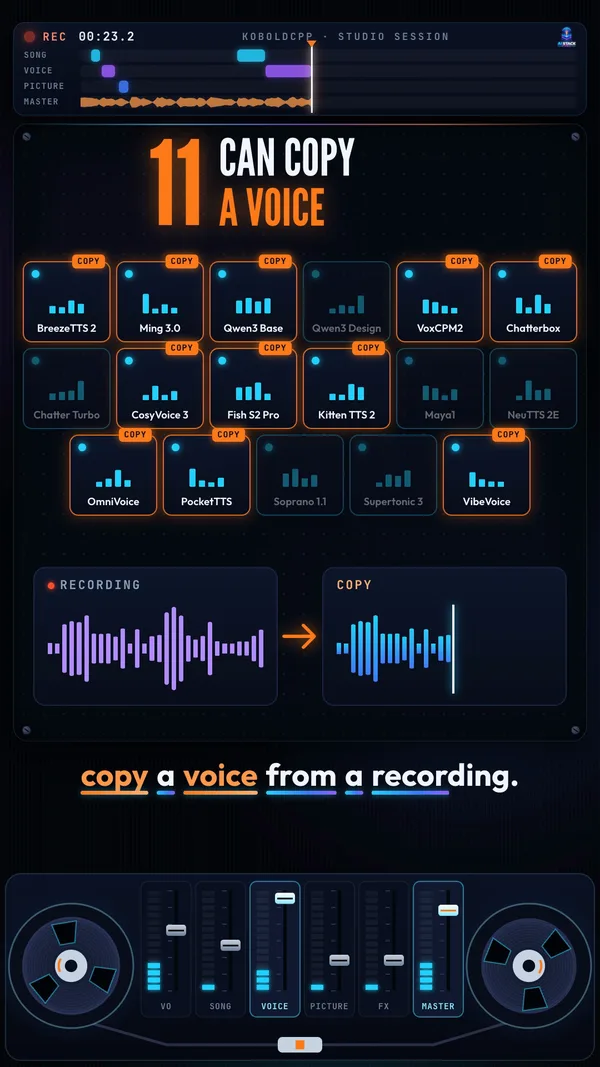
17 new voices, 11 can copy a voice
Text to speech means you type words and hear them spoken. Version 1.124 adds 17 voice models, and 11 of them are tagged “Voice cloning,” meaning they can copy a voice from a recording: BreezeTTS 2, Ming 3.0, Qwen3-TTS Base, VoxCPM2, Chatterbox, CosyVoice 3, Fish Audio S2 Pro, Kitten TTS 2, OmniVoice, PocketTTS and VibeVoice 1.5B. The other six are Qwen3-TTS VoiceDesign, Chatterbox Turbo, Maya1, NeuTTS 2E, Soprano 1.1 80M and Supertonic 3.
Some are also tagged “Instructions.” In the wiki’s example for Qwen3-TTS VoiceDesign, that means you describe the speaker in words and it makes a matching voice. The music page also gets a new transcribe tab (it works with Whisper models), which the release notes say helps the voice models that need a written transcript of the reference recording.
Try this prompt
With a voice model tagged “Instructions,” describe the speaker, then give it the text to read:
A warm, calm older woman's voice, speaking slowly like a bedtime story.
Use case
You write a weekly newsletter or blog. Record 5 to 10 seconds of your own voice (the length the wiki’s voice-cloning walkthrough asks for) and have it read your posts aloud, so readers can listen too.
New picture models
The same update syncs in new picture models, each with a ready-made template: MOSS Image (marked Recommended), Fibo 2 Edit and Flux 3 Klein. The notes also point back to Krea 2 Turbo and Qwen Image 2.1, which were added earlier. Pictures are made in StableUI, KoboldCpp’s built-in picture page at localhost:5001/sdui. For editing models, the wiki says you add a prompt plus reference images and generate.
Try this prompt
A cozy home recording studio at night, warm desk lamp, guitar on a stand, rain on the window, soft film photo look
Which download do you need
Go to the KoboldCpp releases page on GitHub, scroll to Assets, and pick one file. That one file is the whole app.
- Mac with an M-series chip (M1 or later):
koboldcpp-mac-arm64. Intel Macs have no ready-made download; the README says they need a “source build.” - Windows with an NVIDIA graphics card:
koboldcpp.exe. - Windows without NVIDIA:
koboldcpp-nocuda.exe, a smaller download. For AMD cards the release notes recommend trying the Vulkan option in this build first. - Older Windows PC:
koboldcpp-oldpc.exeif the main file won’t run. - Linux:
koboldcpp-linux-x64(also in nocuda and oldpc versions).
Watch out for fakes. The README warns that koboldcpp.com is “a malicious fake site.” Only download from github.com/LostRuins/koboldcpp/releases or the official site koboldcpp.net.
Make your first song, step by step
Workflow: from download to a song
- Download the app for your computer (list above) into your Downloads folder.
- Download the music template. On the v1.124 release page, save “YuE2, small LLM” as
YuE2-Small-LLM.kcpptinto the same folder. - Open KoboldCpp with the template. On Windows, double-click
koboldcpp.exe, load the template file into the launcher and click Launch. On a Mac, open Terminal and type:
cd ~/Downloads
chmod +x koboldcpp-mac-arm64
./koboldcpp-mac-arm64 --config YuE2-Small-LLM.kcppt
- Wait. The first launch downloads the model files the template needs. Keep KoboldCpp running while you use it.
- Open the music page at http://localhost:5001/musicui in your browser. If it won’t connect, the README says to wait for loading to finish.
- Paste your lyrics (or let the small AI write some) and click Generate. In the wiki’s walkthrough the song then shows up on the right, ready to play or download. That walkthrough was written for an older music model, so the buttons may look a little different with YuE2.
If your Mac blocks the app, the README says to follow Apple’s instructions to allow it under System Settings, then Privacy & Security.
To switch to voices or pictures, close KoboldCpp and start it again with a voice model or the MOSS Image template. The free PDF guide above walks through both.
Use case
A friend’s birthday is coming up. Write four lines with their name and an inside joke, load the music template, and make them a song that exists nowhere else.
The fine print
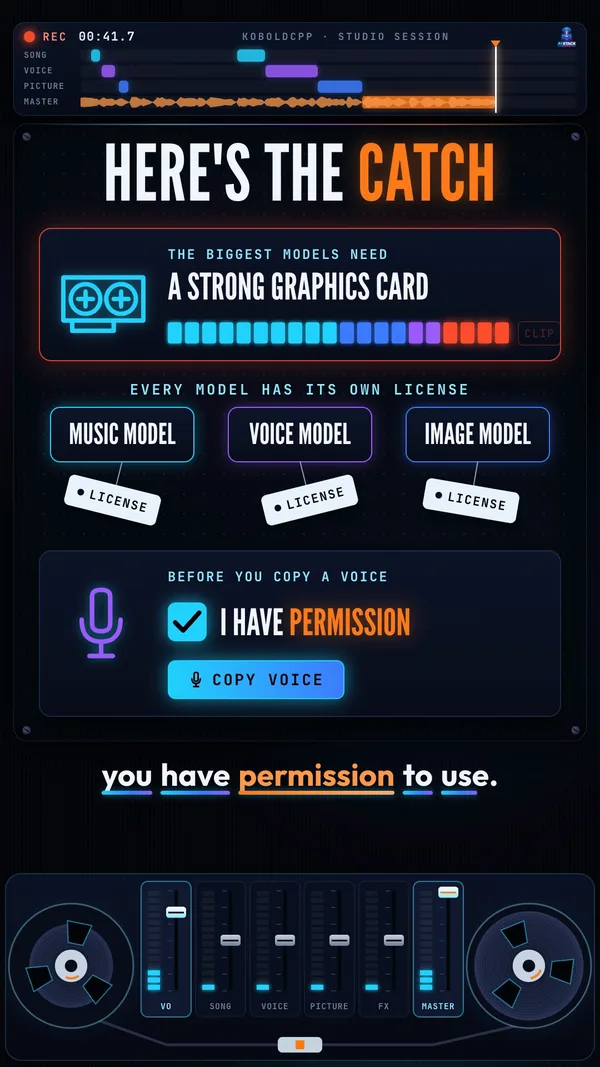
- The biggest models need a strong graphics card. The release notes call the big-LLM music template “Only for large GPUs.” The README’s advice is to start with a smaller model if you’re not sure what your computer can run.
- Every model has its own license. KoboldCpp itself is under the GNU AGPL v3.0, and bundled parts keep their own licenses. Each AI model you download has its own terms, so read the model’s page before using what you make in a business.
- Only copy a voice you have permission to use. Your own, or someone who said yes.
- We don’t know how big each model download is or how fast it runs on an average computer. The release notes don’t say, so we don’t claim it.
Use case
You want background music and a voice-over for a school project or a family video, without uploading anything or paying per month. Start with the small music template and one voice model, and see what your computer can handle before trying the big ones.
What would you make first: a song, a voice or a picture?