Signals/ Reel /
An AI That Sees, Hears and Talks Just Ran in a Browser Tab
Liquid AI's LFM3 Omni is one small model that understands text, pictures, video and speech and answers out loud. A free demo runs it inside a Chrome tab on your own computer. Here's what it is, how to try it, and what to expect.
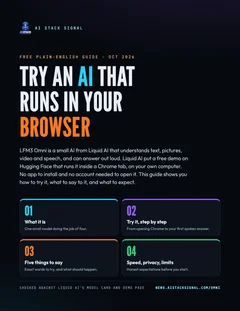
Free guide · 7 pages · PDF
Try an AI that runs in your browser
What LFM3 Omni is, how to open the demo in Chrome step by step, five things to say to it, what to expect on slower computers, and privacy in plain words.
⬇ Download the PDFA small AI that can understand speech, pictures and text, and talk back out loud, now runs inside an ordinary browser tab. No app to install and no cloud server doing the thinking. It’s called LFM3 Omni, from Liquid AI, and there’s a free demo you can open in Chrome today.
What happened
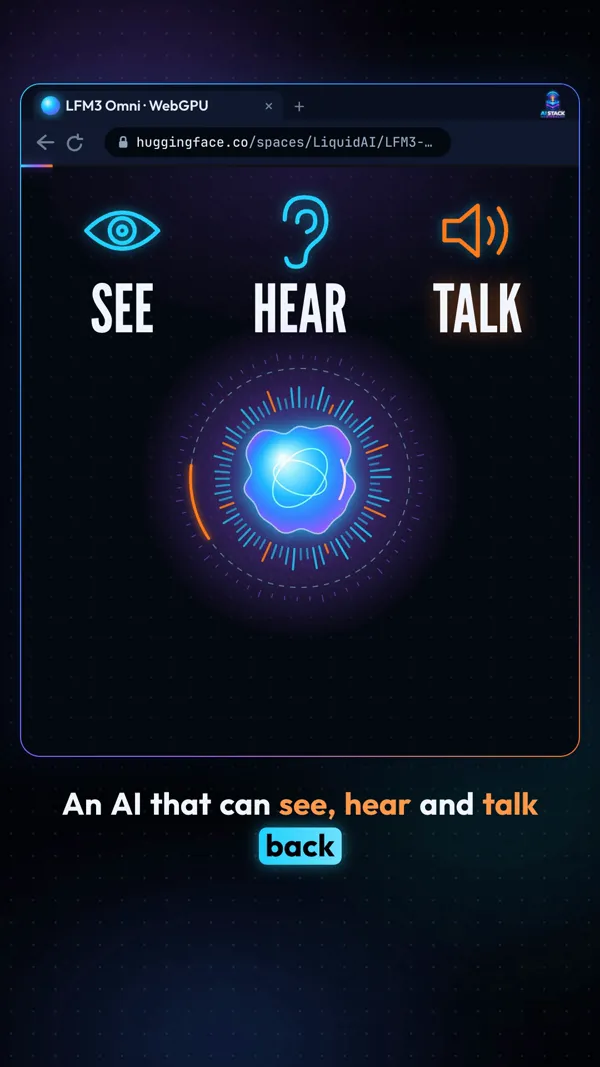
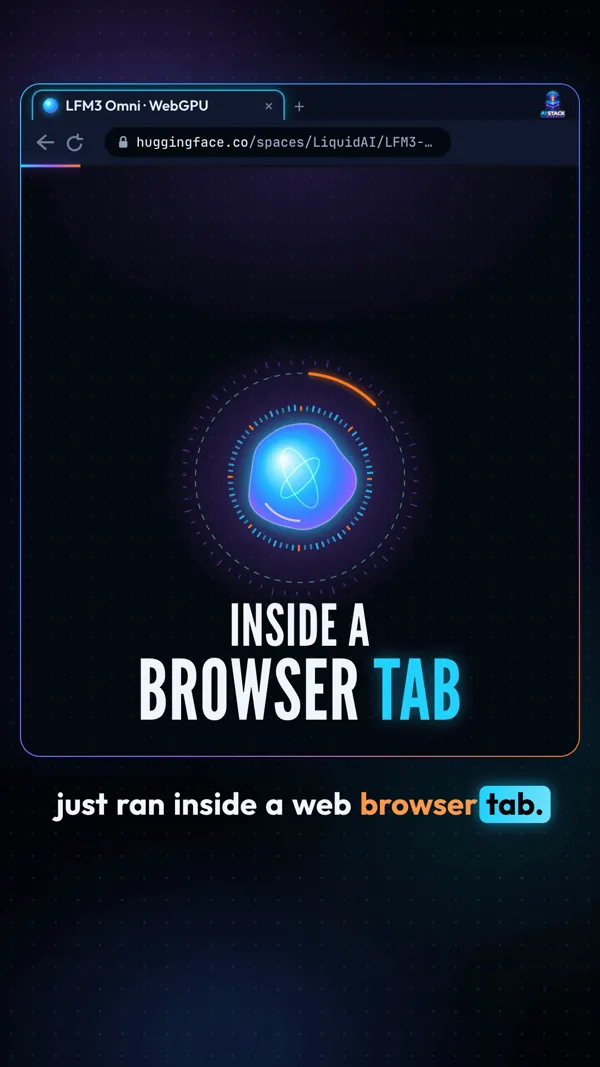
Liquid AI posted LFM3-Omni-2B on Hugging Face, a popular site for sharing AI models, on October 21, 2026. On October 29 a demo page followed that describes itself as “Run LFM3-Omni-2B locally in the browser on WebGPU.” WebGPU is a feature of modern browsers that lets a web page use your computer’s graphics chip. That chip does the AI’s work, right there in the tab.
Use case
You want to show a friend or parent what a voice assistant can do, but they don’t want to install anything or make an account. Open one web page on their laptop, wait for it to load, and let them talk to it.
Four AIs in one
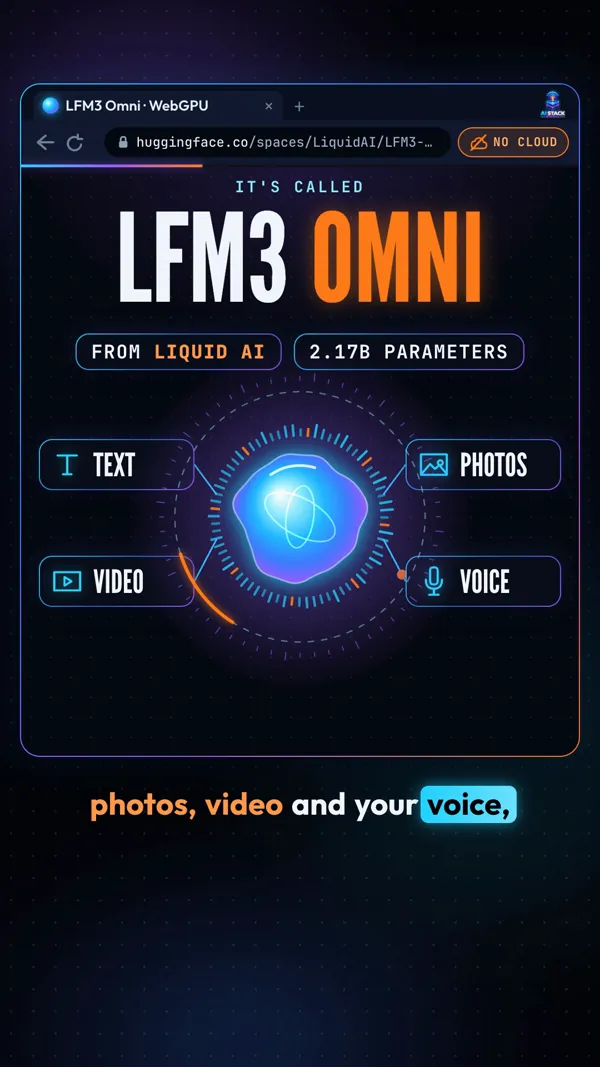
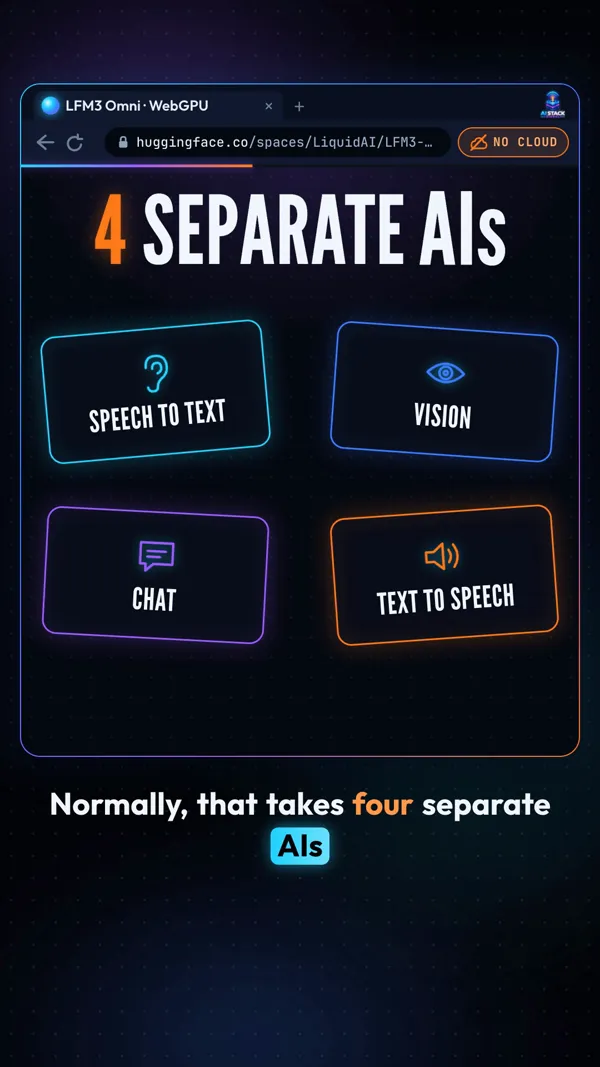
Liquid AI calls LFM3 Omni “a single end-to-end model that understands text, images, video and audio, and answers in text and speech.” A talking assistant usually chains four separate tools: one turns speech into text, one looks at pictures, one writes the answer, and one reads it out loud. Liquid AI says this one model “replaces a separate ASR model, vision-language model, LLM and TTS model.” Those are the same four jobs.
It is small on purpose: 2.17 billion parameters, which Liquid AI says is “designed to run efficiently on phones, laptops and other edge hardware.” Edge just means your own device.
Try this prompt
If terms like ASR or TTS mean nothing to you, paste this into any AI assistant:
Explain in plain English the four parts of a voice assistant: speech-to-text, a vision model, a language model and text-to-speech. Use a restaurant comparison, then tell me why doing all four in one small model on my own laptop is a big deal.
The speed claim, with a grain of salt
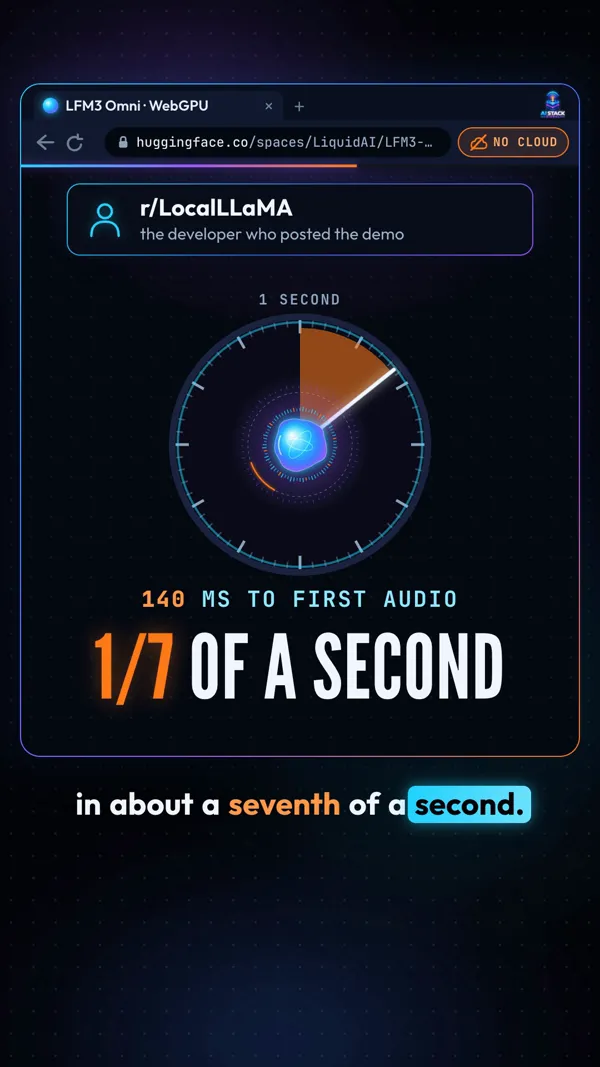
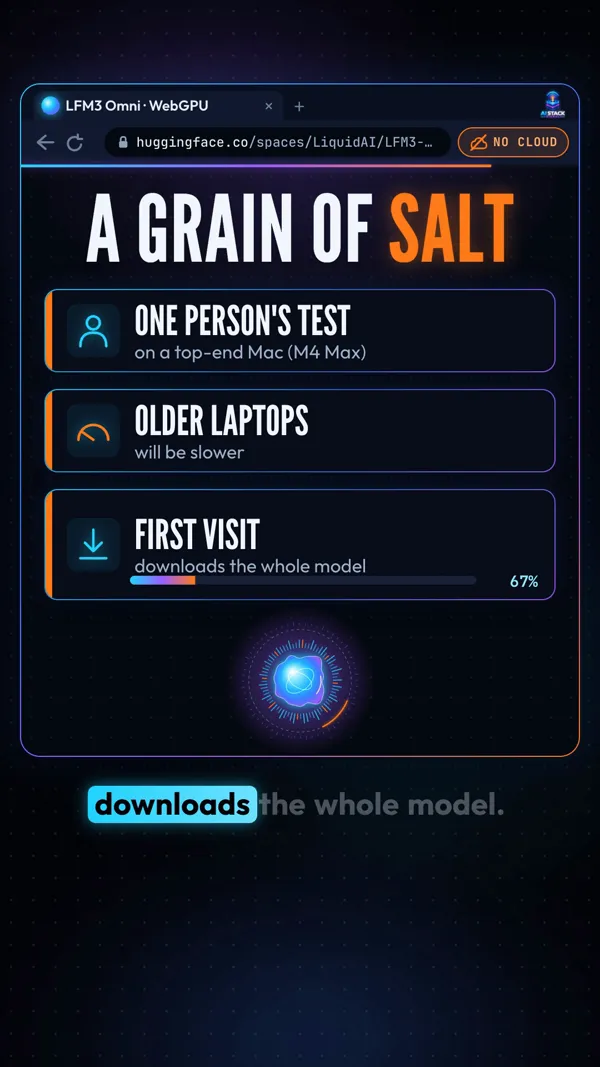
The developer who shared the demo on Reddit’s r/LocalLLaMA reported about 90 milliseconds to the first word and 140 milliseconds to the first sound, roughly a seventh of a second, plus about 280 tokens per second. That is one person’s test on one top-end Mac, an M4 Max. Older laptops will be slower, and the first visit has to download the whole model before it can answer. The loading screen shows you the size and progress.
Use case
You have a three-year-old laptop. Expect a longer first load and a longer pause before each answer than the numbers above. If the page says your browser doesn’t support WebGPU or “This GPU can’t run the model,” that computer can’t run the demo. Try a newer one.
Why it matters: your stuff stays on your machine
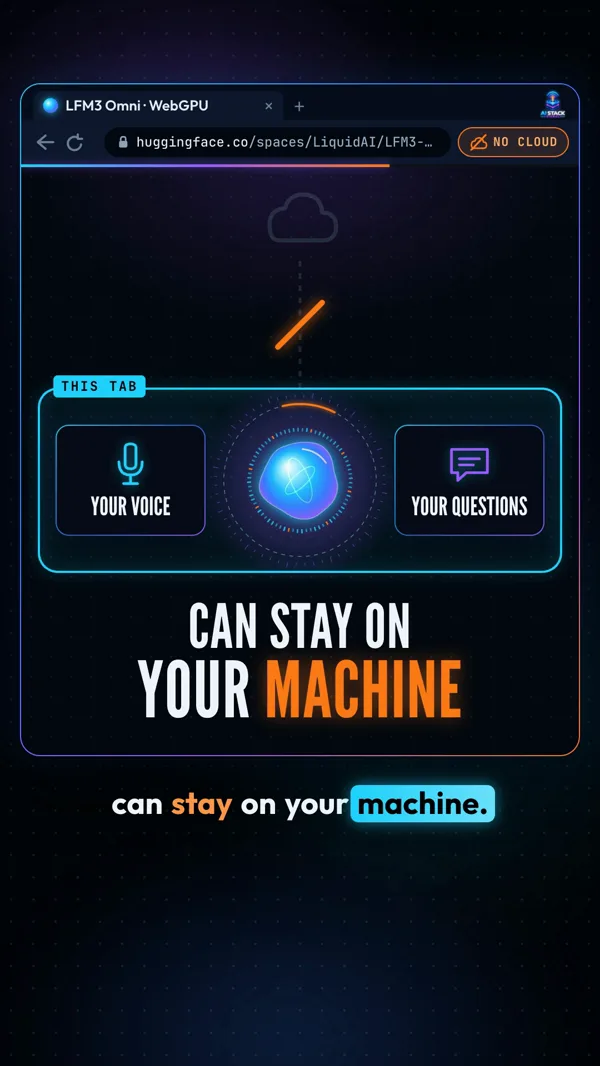
Because the AI runs on your own graphics chip, what you say or type is handled by your computer, not sent to an AI company’s server to be answered. The demo’s own help text says it “runs on your device’s graphics chip through WebGPU.” For a model that understands photos and voice, that is the point: your photos and voice notes can stay on your machine.
Two honest footnotes. The page and the model still download from Hugging Face, so Hugging Face sees your visit like any website. And if you ask “Where am I?”, Chrome asks for your location, which you can refuse.
Try it, step by step
Workflow: from zero to a spoken answer
- Open Chrome (the demo also names recent Edge and Safari) and go to huggingface.co/spaces/LiquidAI/LFM3-Omni-2B-WebGPU, or search for “Liquid AI LFM3 Omni WebGPU.” Check the address starts with huggingface.co/spaces/LiquidAI.
- Wait for it to load and keep the tab open. It checks your graphics chip, then downloads the model with a progress bar.
- When it says “Talk to me, or type,” hold the Space bar (or tap the orb) and speak. Chrome asks for your microphone the first time: click Allow. Let go to send. Each voice message can be up to 30 seconds.
- Or type your message and press Enter.
- Listen. It answers out loud and in text. Press Esc or tap the orb to stop it. Switch off Spoken replies for text only.
Five things to say to it
The demo can check the time, tell where you are, set timers and more, all from inside the tab. Try these exact words:
Set a timer for ten minutes for the pasta.
How do I say "Where is the train station?" in Spanish?
How much battery do I have, and what kind of computer is this?
Am I online right now?
That last one is a neat test: once it has loaded, turn off your Wi-Fi first. The demo’s built-in answer for an offline device says the assistant “runs entirely on this device, so it keeps working without a connection.”
Explain in two short sentences what a graphics chip does.
Limits
- The demo is for talking and typing. The model itself understands photos and video, per Liquid AI, but when we checked the demo page on October 30, 2026, it had no button to add a photo. Watch the page for updates.
- It’s a small model. Liquid AI calls it “non-reasoning.” Double-check facts, numbers and translations that matter.
- It’s a demo, not a finished app, and the model comes under Liquid AI’s own LFM Open License v1.0.
- We don’t know the exact browser download size, how it runs on an average laptop, or whether it works on phones. Liquid AI hasn’t said, so we don’t claim it.
Use case
You record voice notes about private things, like health questions or family plans, and don’t love sending them to a cloud AI. A small on-device model like this is the direction to watch: the answers come from your own computer.
What would you ask an AI that never leaves your laptop?