Signals/ ChatGPT & OpenAI/ Reel /
ChatGPT Can Reach Your Gmail, Slack and Notion Through One Plugin. Here's the Setup and the Catch
Composio is a plugin in ChatGPT's plugin directory. Install it, sign in, connect your apps, and one request can run a multi-step job across Gmail, Slack, Notion and more. Here's what it is, the setup step by step, prompts to try, what ChatGPT shares with it, what the free plan covers and what Pro costs, and the approval setting to keep on.

Guide · 7 pages · PDF
ChatGPT + Composio setup guide
Plain-English steps: what the plugin is, the setup step by step, prompts to try, what ChatGPT shares with it, what the free plan covers and what Pro costs, the approval setting to use, a safety checklist, and every source.
⬇ Download the PDFMost of us copy things between apps all day. Read the email, open Slack, paste a summary, open Notion, find the doc. ChatGPT has a Plugins directory, and one plugin in it, Composio, is built to do that kind of job for you in one request.
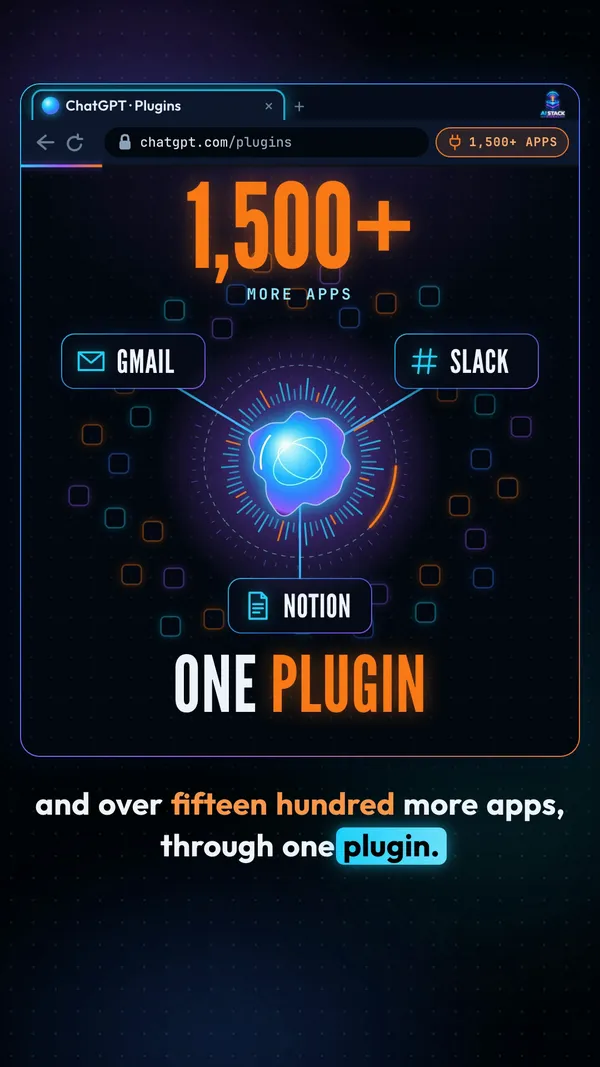
Composio’s listing in ChatGPT says it “coordinates multi-step work across the user’s authorized services.” Composio says it connects more than 1,500 apps. That number is Composio’s own count, not an independent one.
It’s real and it’s listed. But it shares some of your ChatGPT context with Composio, the free plan has a limit, and how much it can do without asking depends on a setting you choose. Below is how it works and what to watch for, taken from OpenAI’s help pages, the plugin’s own listing and Composio’s pages on November 3, 2026.
What this actually is
ChatGPT has a plugin directory. OpenAI’s help page says “The plugin directory is available across ChatGPT plans.” You install a plugin, connect it if asked, sign in, and then call it in a chat with an @ mention or the + menu.
Composio is one of those plugins. Its listing in the directory describes it like this: “It discovers the tools needed for a request, retrieves their input requirements, runs dependent steps across apps, and combines the results into one response.”
The basics, from the plugin page:
- Developer: Sampark Inc. Composio is a third-party plugin, not something OpenAI made.
- Category: Productivity.
- Version: 2.0.1.
- How it connects: through an MCP server at connect.composio.dev/mcp.
About the 1,500 number. Composio’s ChatGPT page says “1,500+ SaaS toolkits” and “1,500+ managed integrations.” The same page also says “Composio connects 500+ apps” in another spot, and its pricing page says “1000+ tools.” Treat 1,500 as the company’s own claim.
Use case
You start the morning with a full inbox, a Slack team waiting for an update and notes spread across Notion. Instead of opening each app, you ask ChatGPT once and Composio runs the steps across them.
Takeaway
A third-party plugin in ChatGPT’s directory that runs one request across several of your apps. The 1,500 apps figure is Composio’s count.
The use case
The plugin’s own listing gives three example jobs. Each one touches several apps in a row:
- Inbox: find unread customer emails, summarize them, create Linear issues, and post the links in Slack.
- Meetings: take today’s meetings plus the related Notion docs and send a brief to Slack.
- Code: find GitHub pull requests, summarize them, and make Asana tasks.
The reel uses a shorter version of the first one: summarize my unread emails and post a recap in Slack. That’s three steps (read, summarize, post) in one request.
Workflow
- Pick one job you repeat every day that crosses two or three apps.
- Write it as one sentence: what to read, what to do with it, where to put the result.
- Run it with approvals on, so you see each step before it happens.
Takeaway
The win is chaining steps across apps. One app at a time, you may not need it.
How to set it up
These steps come from OpenAI’s Plugins in ChatGPT and Connected apps help pages and Composio’s own ChatGPT page. Composio lists one prerequisite: “A ChatGPT account.”
1. Install the plugin. In ChatGPT, open Plugins (or Settings, then Plugins), search for Composio, and select Install plugin.
2. Sign in and allow access. Log in to Composio and click “Allow access.”
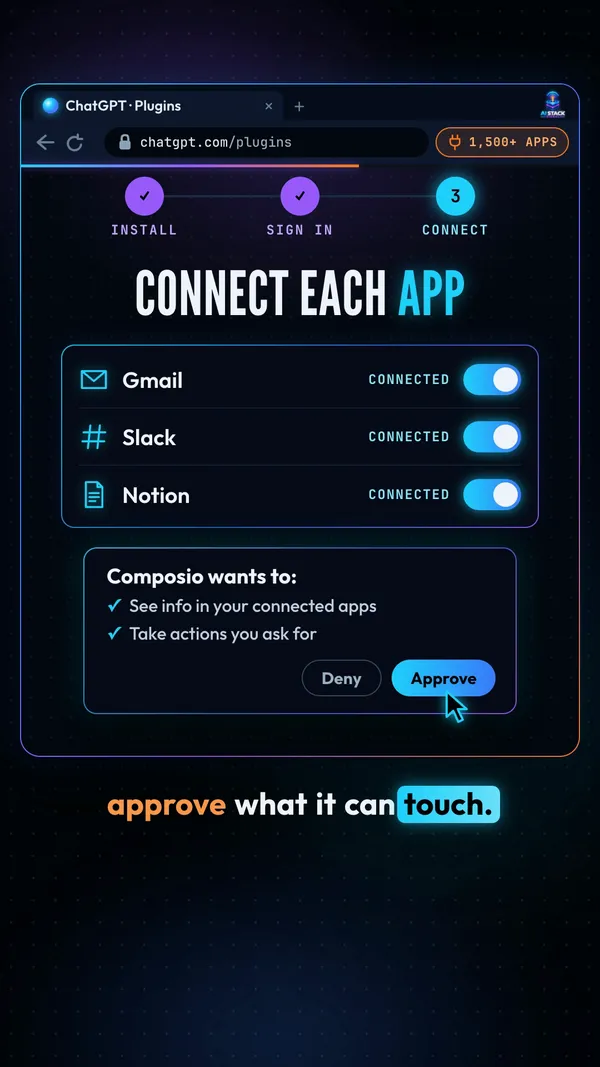
3. Connect each app and approve what it can touch. Composio: “Composio connects through OAuth. You will be asked to sign in and approve specific permissions.” OpenAI’s help page says to “Review the requested services and permissions” before you approve.
4. Use it. Type @Composio followed by your request, or pick it from the + menu.
Which plans? OpenAI: “Installing or using an individual plugin depends on your plan, workspace, role, region, and its included capabilities.” We couldn’t confirm it works on the free ChatGPT plan, so check your own screen. Installing a plugin also can’t bypass the app’s own permissions or your workspace’s rules.
Not the old route. You may see older guides that turn on Developer Mode and paste a server address. OpenAI says custom MCP server connections are for Business and Enterprise/Edu, and Pro gets read and fetch only. The plugin is the normal route.
Workflow
- Open Plugins, search Composio, Install plugin.
- Sign in to Composio, click Allow access.
- Connect one or two apps first, and read each permission screen.
- Set approvals to Always ask (more on that below).
- Start a chat with @Composio.
Takeaway
Three taps to install, then one sign-in per app. Connect only what you need.
Prompts to try
Start with jobs that only read and summarize. Move on to jobs that send or change things once you trust what it does. Composio’s own advice: “Keep write actions human-reviewed.”
Prompt to try
@Composio summarize my unread emails and post a recap in Slack.
That’s the one from the reel. With approvals on Always ask, ChatGPT checks with you before it acts.
More to try, from the plugin’s own examples
@Composio find my unread customer emails, summarize them, and list what needs a reply.
@Composio summarize today’s meetings and pull the related Notion docs.
@Composio find my open GitHub pull requests and summarize each one.
The first two above stop at reading. If you then ask it to post, send or create tasks, read what it plans to do before you approve.
Takeaway
Name the app and the exact place (“the #team channel”, “my work Gmail”). Read first, write later.
What gets shared
To work across your apps, the plugin has to see things. Here’s where your information goes, in the sources’ own words:
- From ChatGPT to Composio. The plugin page: “When connected to Composio, ChatGPT may share relevant chats and memories with this app to help provide context for your requests.”
- Basic device info to the app. OpenAI says apps may see your IP address, device and browser type, language, region and approximate location.
- Training. On ChatGPT Free, Plus, Go and Pro, OpenAI may use information accessed from apps to train models if “Improve the model for everyone” is on. On Business, Enterprise and Edu it doesn’t by default.
The approval setting. ChatGPT gives each app four options: Always ask, Allow read actions, Allow low-risk actions, and Allow all actions. OpenAI: “Allow all actions carries elevated risk because supported actions may run without another confirmation.” Keep it on Always ask.
Prompt injection. OpenAI warns that untrusted MCP servers can raise risks “including prompt injection.” That’s text hidden in an email or web page that tries to steer the AI. Another reason to keep approvals on.
Changed your mind? You can disconnect apps from Settings, then Plugins.
Workflow
- Before you connect, check “Improve the model for everyone” in ChatGPT’s settings and decide if you want it on.
- Connect only the apps you need, and skip your most sensitive accounts.
- Set the app’s approvals to Always ask.
- Know where to disconnect: Settings, then Plugins.
Takeaway
Your relevant chats and memories may go to Composio. Approvals on Always ask means nothing runs without you.
What it costs
These are Composio’s prices from its pricing page, refreshed November 3, 2026. Composio counts tool calls: the reel calls them actions.
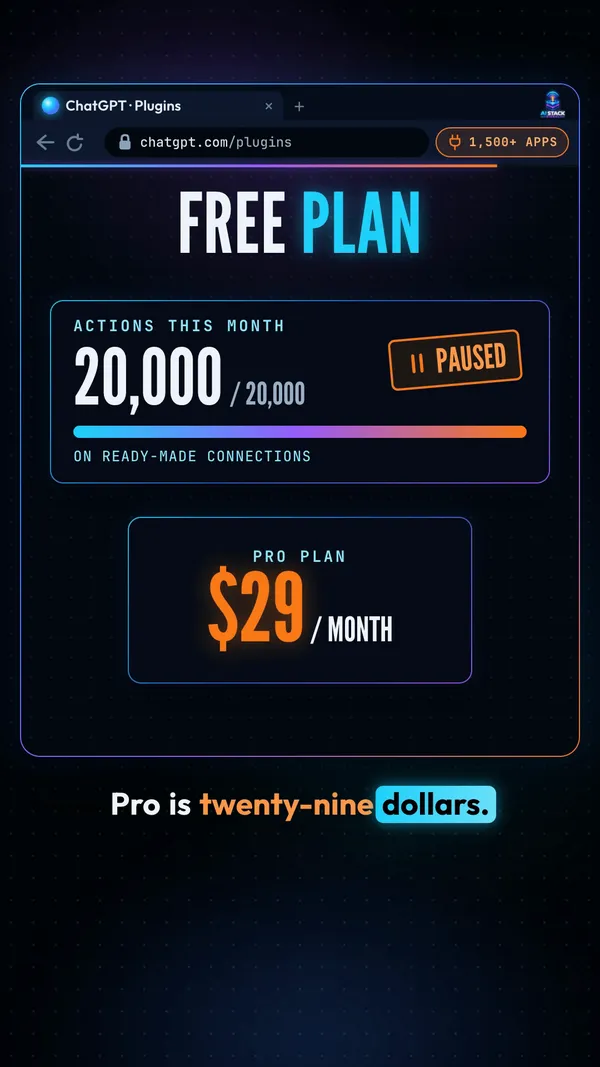
- Hobby, $0. 100,000 tool calls a month, but “Up to 20,000 of these can use Composio-managed apps.” Managed apps are the ready-made connections. On Hobby, that’s “20K free, then stops.” No credit card, and it’s hard-capped, so usage pauses at the cap until next month.
- Pro, $29 a month. Includes $29 of monthly credits, then per-call rates. Managed apps are priced by app, for example $0.002 a call for Gmail or Slack and $0.01 for Salesforce or YouTube.
- Enterprise. Custom pricing.
One note from the page: “Per-app credit usage pricing for Composio-managed apps applies to signups on or after November 3, 2026.” Older articles show older plans, so check the pricing page before you upgrade.
Use case
You try a few read-only requests a day on Hobby. If you later build a busy daily routine, watch the count: each action it runs counts as a tool call, so a request with several steps uses several.
Takeaway
Free to start with a hard cap of 20,000 calls a month on ready-made connections. Pro is $29 a month plus usage after the credits.
The fine print
- 1,500 is Composio’s count: its own pages also say 500+ apps and 1000+ tools.
- Plan support isn’t confirmed: OpenAI says installing a plugin depends on your plan, workspace, role and region. We couldn’t confirm the free ChatGPT plan.
- Third-party plugin: the listed developer is Sampark Inc, not OpenAI.
- Not hands-off: how much it does without asking depends on your approval setting.
- Drawn screens: the sign-in, allow and connect screens in the reel are illustrations, not screenshots. Button names on your screen may differ.
- Not connected: AI Stack Signal isn’t connected to Composio or OpenAI.
Takeaway
Every fact here comes from the plugin’s ChatGPT listing, OpenAI’s help center and Composio’s own pages, checked on November 3, 2026. Grab the PDF guide above for the full walkthrough and the safety checklist.
Sources & links 6
- ChatGPT plugin page for Composio chatgpt.com ↗
- OpenAI Help Center: Plugins in ChatGPT help.openai.com ↗
- OpenAI Help Center: Connected apps in ChatGPT help.openai.com ↗
- OpenAI Help Center: Connecting custom MCP servers in ChatGPT help.openai.com ↗
- Composio: How to connect Composio with ChatGPT composio.dev ↗
- Composio pricing composio.dev ↗
More on ChatGPT & OpenAI News, AI Agent News, AI for Small Business