Signals/ Claude & Anthropic/ Reel /
Let Claude Sort Your Messy Trip Photos: We Tested It on 143 Photos
Claude can sort a messy photo folder for you. Here are the steps, the exact prompt we used, what happened when we ran it on 143 shuffled photos with 26 hidden duplicates, and the catch before you try it.
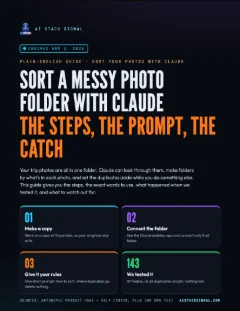
Guide · 5 pages · PDF
Claude photo sorter guide
Plain-English pages: five steps from start to finish, the exact prompt we used, our test results, the catch, and every source.
⬇ Download the PDFYour trip photos are all in one folder. Food, sunsets, screenshots, the same shot five times. Claude can look through them, make folders by what’s in each photo, and set the duplicates aside.
We didn’t take that on trust. We ran it on 143 shuffled photos and checked every file afterwards. Below are the steps, the words we typed, what happened, and what to watch out for. Anthropic’s facts were checked on November 3, 2026.
How to do it
You need a paid Claude plan and the Claude desktop app, because Claude reaches folders on your computer through that app.
- Copy your photos into a new folder. Anthropic’s safety page advises a dedicated working folder and backups. Leave anything private out.
- Use JPG or PNG files. iPhone photos are often HEIC, and HEIC isn’t on Anthropic’s list of image types, so export them as JPEGs first.
- Open the Claude desktop app and connect that folder. Start a new chat and add the folder. The exact buttons depend on your account, so look for the + by the message box. Connect only the copy, not your whole computer.
- Send your rules. Claude “creates a plan”, then moves the files. Keep the desktop app open while it works.
- Check the result. Read the summary, open a few folders, and compare the number of files before and after.
Use case
You’re back from two weeks away with one folder of mixed photos, and you want the food shots for a family album. Sort a copy, open the Food folder, and pick from there. Your originals never moved.
Takeaway
Work on a copy, connect only that copy, keep the app open, and check the result.
The exact prompt
Three short rules do the work: how to sort, where duplicates go, and what never to do. This is the prompt we used:
Sort these photos into folders by what’s in them, like food, nature and places. Put duplicates in a folder called Review. Don’t delete anything.

Want it your way? These are our own ideas, and we haven’t tested them:
- Your own folders: “Sort these into three folders: Family trip, Food and Everything else.”
- A check first: add “Show me your plan before you move anything.”
- Better file names: add “Rename each photo with what’s in it and keep a list of the old names.”
Takeaway
Say how to sort, where duplicates go, and that nothing gets deleted. That’s the whole prompt.
What happened when we tested it
We used 143 stock travel, food, city and nature photos. We shuffled them and renamed them IMG_2001 to IMG_2143, so the file names gave no clues. 26 exact duplicates were hidden in the set. After the run, we checked every file by its digital fingerprint.
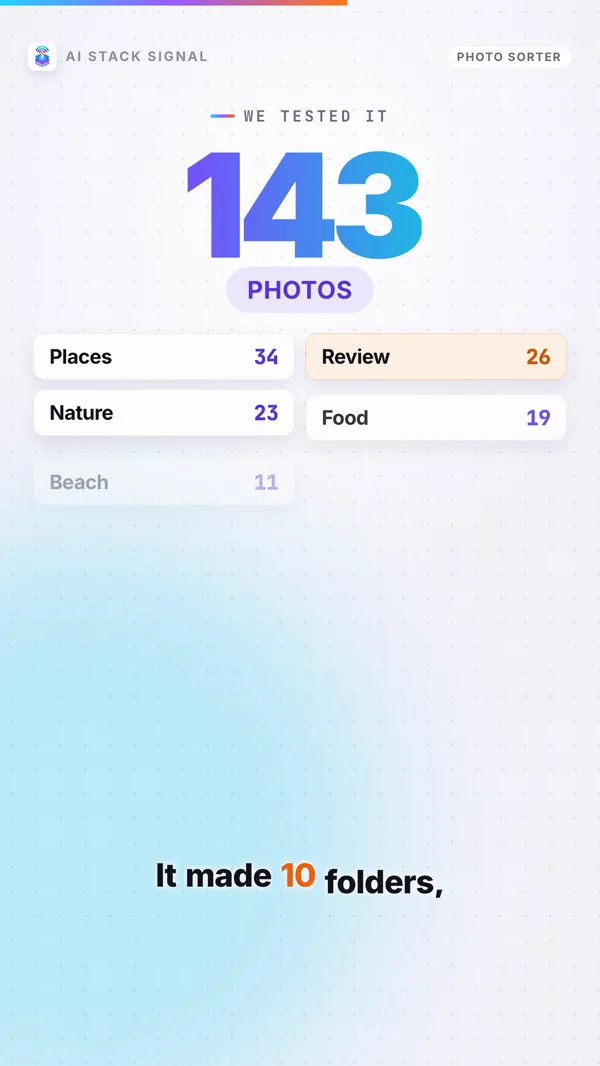
- 143 photos before, 143 after. None lost, none changed.
- 26 of 26 duplicates caught, with none wrongly flagged.
- 10 folders: Places 34, Review 26, Nature 23, Food 19, Beach 11, Amusement Parks 8, Diving 7, and Flights, Hiking and Nightlife with 5 each.
We looked through the sorted photos and they made sense. There were judgment calls: Food also picked up restaurant interiors, and a few beach and nature shots could have gone either way. If the line between two folders matters to you, put it in your rules.
This was one test, not a guarantee. The duplicates were exact copies, so we can’t say how it handles near-identical shots. We also didn’t measure the time or usage it took.
Takeaway
On our 143 photos it lost nothing and caught every exact duplicate. Check your own results anyway.
Still see a Cowork button?
That’s the same thing. Anthropic’s product page says “Claude Cowork is now just Claude”, and that “When a task calls for working with your files, Claude brings in Cowork’s capabilities automatically.”
The change is still rolling out, starting with Pro, Max and Ultra plans. Until it reaches your account, Anthropic says you’ll find Cowork next to Chat. So the same steps work with either screen.
Takeaway
Cowork or no Cowork button, it’s the same feature. Some accounts just haven’t changed yet.
The catch

- It needs a paid plan. Anthropic says this kind of work “consumes limits faster than Chat”, so big jobs burn through your usage.
- Your photos leave your computer. Anthropic says local files Claude opens are “processed on Anthropic’s servers rather than staying on your computer.” Keep private photos out.
- The app stays open. Claude needs the desktop app “open and connected” to reach your folder.
- HEIC isn’t on the list. Anthropic’s product page lists .png, .jpg, .jpeg, .gif, .svg and .webp for images. We didn’t test HEIC, so exporting JPEGs is the safe route, not a proven fix.
- Deleting needs your OK. Anthropic says Claude asks before permanently deleting any file. On a job like this, there’s no reason to allow it.
Takeaway
Paid plan, Anthropic’s servers, app open, JPEGs. Know all four before you start.
The fine print
- One test: our numbers come from one run on 143 stock photos, on November 3, 2026.
- Not tested: HEIC files, near-duplicates, time taken and usage spent.
- Our advice is ours: the prompt and tips are AI Stack Signal’s, not Anthropic’s instructions.
- Not connected: AI Stack Signal isn’t connected to Anthropic.
Takeaway
Every Anthropic fact here comes from its product page and Help Center. The test numbers are ours. Grab the PDF guide above for the full walkthrough and every source.
Sources & links 5
- Anthropic: Claude Cowork product page claude.com ↗
- Claude Help Center: Get started with Claude Cowork support.claude.com ↗
- Claude Help Center: Use Claude Cowork safely support.claude.com ↗
- Claude Help Center: Claude Cowork and Chat are one Claude support.claude.com ↗
- Anthropic Academy: Organize files by what's in them academy.claude.com ↗
More on Claude AI News, AI for Small Business, AI for Beginners